Case Study · Design process
Designing the D80
A touchscreen flagship that had to match a phone made of buttons
Every button kept.
None of them in the way.


Digium (now Sangoma) · Flagship IP phone · Touchscreen UI · Hardware + firmware
Role
Sole designer, working with product management and engineering
Problem
Build a touchscreen flagship that matched the button-driven D70 feature for feature, and still gave buyers a reason to pay more
Approach
Keep every D70 function, but move each one to the moment it’s needed, freeing the idle screen for notifications
Outcome
The production run sold out. We pulled demo and QA units to fill orders, and the demand encouraged the next touchscreen phone, the P370.
Designing for hardware
Hardware runs on a longer clock than software. Industrial design and manufacturing set the pace, hardware QA takes longer than software QA, and samples must pass U.S. federal certification before a phone can ship. The screen and case were locked early; the interface kept evolving in firmware right up to launch. From the first concepts in 2015 to shipping in March 2017 took about two years.

Who it was for
The D80 had three audiences: executives, the professional assistants who support them, and early adopters who want the newest thing on their desk.
The most important insight came from one of our executives. An assistant doesn’t just answer the executive’s calls; they help the executive use the phone. That only works if the assistant has the same device and knows it from using it every day. The D80 stopped being a single executive phone and became a pair, and parity became a matter of shared familiarity, not just a feature checklist.
What the business needed
Digium sold whole phone systems: an on-site PBX server plus endpoints across a building, from executive offices to loading docks, lobbies and shared spaces.
The D80 was the halo product. Its job was to help close the larger deal by putting something impressive on the desk of the person signing the contract, while still feeling like part of the same family as the most affordable handset in the warehouse.
The directive: parity
The brief was clear: the D80 had to do everything the D70 did. The design question was what “everything” should mean on a screen with no buttons.
The D70 was the established model, a phone customers already relied on, built around physical keys: programmable line keys with status lights, dedicated Transfer, Hold and Conference keys, and soft keys that change with context. Our product manager set the feature requirements, and parity was the business requirement. An executive on a D80 and an assistant on a D70 had to work as a pair, and a customer buying both shouldn’t have to train their staff twice.
So the challenge was translation: turning a phone defined by its buttons into one with almost none, without dropping a single function.
Why literal parity fails
The “button-to-button” study on the D72, the D80’s working name: every D70 key translated literally onto glass.
To make the case for a different approach, I didn’t argue in the abstract. I took every button from the D70 and laid them all out on a single screen.
The result had nearly fifty touch targets: sixteen line keys and paging arrows, a full dial pad, five audio controls, four soft keys and ten function keys. Contacts and Status each appeared twice, because a soft key and a hard key that made sense on the D70 became duplicates on glass. And all that screen space told an executive nothing about their day except the time.
When management saw it, they got nervous. That was the point.
Earlier touchscreen phones “simply replicated traditional multi-button phones.”
David Deaton, VP of Products, Digium, at the D80’s launch · Press release, February 2017
The argument I made internally became the product’s public positioning.
Fifty buttons on glass doesn’t work. So the question became
How do you design a phone with no buttons?
Start with the person who has never used a touchscreen, and make sure they never miss the buttons.
Going beyond parity
Matching the D70 was the floor. But parity alone gave no one a reason to pay more for the flagship, so the D80 needed something the D70’s hardware simply couldn’t do.
The iPhone and Android were still young, and they were teaching people what notifications could be. Desk phones hadn’t caught up: a business phone offered a blinking message-waiting light, which said something happened, go find out what.
I proposed bringing smartphone-style notifications to the desk. Not just “missed call,” but how many, and from whom: the difference between a light and a priority list. Beyond calls, I imagined the phone as an assistant on the desk, surfacing calendar reminders, to-dos and messages in one place an executive would glance at between meetings.
The pitch: two screens
After the button-to-button screen, I showed my alternative: a mostly blank idle screen. Every D70 function was still one tap away, and the empty space became somewhere notifications, reminders and calendar events could appear.
The product manager approved the notification area for the idle screen. Connecting to calendars and email remained a stretch goal.

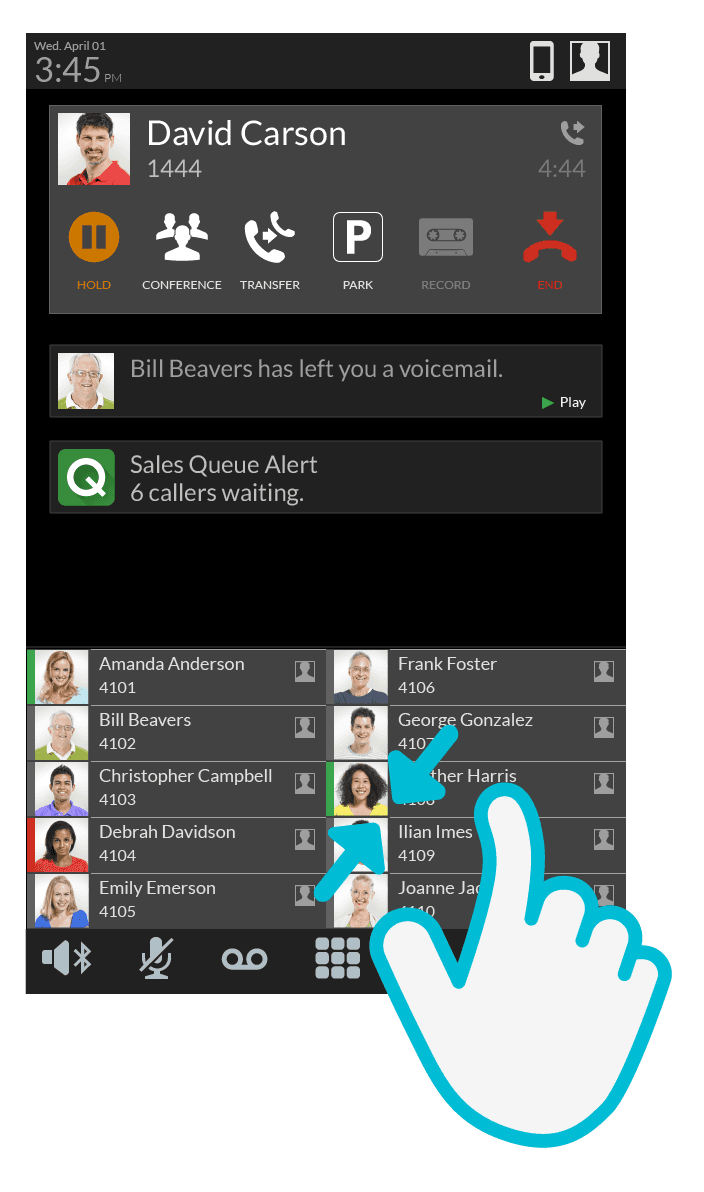
The alternative, in wireframes: idle screen, keypad dial, call management, and a keypad for phone menus mid-call. The idle screen holds actionable cards, a queue with six callers waiting and a parked call you can pick up, instead of a clock and a logo.
The system
Nothing was removed. Each function moved to where it’s needed. Instead of designing dozens of individual screens, I designed one layered structure, and every screen is a state of it.

The layer model.
Status bar and tool bar stay fixed: time and identity at the top, persistent controls at the bottom.
The active card sits highest. A live call always floats above everything else.
The activity pane is the stream behind it, with compact notification cards (a queue alert, a parked call) and taller detailed cards for things that need an action, like voicemail with Play.
The rapid dial drawer slides up from the bottom on a handle. Favorites are always in reach without taking over the screen. An early version called it a pane; renaming it a drawer made clear it opens and closes.
Where the D70’s buttons went
D70
D80
15 programmable line keys
A rapid dial drawer of favorites, with colored presence bars
Hold, Transfer, Conference keys
Actions on the call card that appear only during a call, plus Park and Record
A permanent 12-key dial pad
A keypad overlay on demand, and one for phone menus mid-call
Message-waiting light, Messages key
Missed-call and message counts in the status bar; voicemail cards with Play
Apps, Menu and Info keys
A navigation drawer behind the asterisk
Contacts and Status, each twice
Each appears once
A clock-and-logo idle screen
Actionable cards: queue alerts, parked calls, voicemail

Screen-size study: D70 deskphone, Android softphone, D80 touch screen deskphone

A second call. The first call goes on hold and collapses to a compact strip, the new call stacks below it, and the queue and parking alerts never leave the screen.
Transferring a call: the assistant’s everyday task
Transfer is what an assistant does all day, often to the executive. On the D70 it was a Transfer key plus a line key. The D80 keeps that same pattern, Transfer and then a contact, and adds a confirmation step so a mis-tap never sends a caller to the wrong person, and a record left in the activity stream.

Six steps from idle to done. In this version, once a transfer starts, the orange button reads Cancel; earlier versions said Resume. Cancel tells someone mid-transfer exactly how to back out.
Testing it on ourselves
Before launch, the D80 went to our own team first under the code name Model 80. The pilot began as soon as the basic features worked, with the phone matching what our existing desk phones could do, so we could live with it every day before building anything new. Parity came first here too.
With that foundation in place, we built the apps that made a touchscreen worthwhile: conference monitoring, queue login, visual voicemail, and more.

Inside the sprint
We worked in an agile process, and I sat in on sprint meetings with the engineers. That let me respond to their needs quickly, hear about pain points before they turned into workarounds, and see demos of work in progress.
New firmware came out nightly. Each morning I reviewed what had changed and fed issues back the same day. Between sprints I worked with engineering almost daily: delivering screens, writing redlines, and answering edge-case questions. What happens to a held call when a second one comes in? What should the transfer button say mid-transfer?
Iteration came from a side-by-side parity audit against our existing phones. Every label had to match: if the D70 said Transfer, the D80 said Transfer. Soft keys and menus sat in the same relative places, so anyone moving between phones, or helping someone else with theirs, never had to relearn where things were.
Nightly
Firmware builds, reviewed each morning
80 dp touch targets
Targets for primary actions

Contact details, redlined for engineering. Presence shows whether someone is idle or away.

The rapid dial drawer, built: a handle to pull it up, and a presence bar on each contact.

The navigation drawer spec. The status bar carries counts for missed calls and messages, replacing the single blinking light.
Outcome
The first production run sold out. We scrambled to find demo and QA units to fill orders, and the demand encouraged us to develop the next touchscreen phone, the P370.
Sold out
First production run
March 2017
Shipped, after a February launch at ITEXPO
P370
The touchscreen phone that followed

“The touchscreen interface makes it all both simpler and richer.”
D80 review, February 2017 · IP Phone Warehouse ↗
The notification-centered design shipped: Digium’s launch materials led with visual voicemail, user presence, intelligent contacts and visual call parking, with up to 100 rapid dial keys. The calendar and email connections stayed on the roadmap as a stretch goal.
Next case study